English
Installation and First Run
Follow these five steps to prepare the launcher and detect or install the game. You can reuse an existing game without uninstalling the official launcher.
1. Check your platform
| Platform | Packages |
|---|---|
| Windows 10 1809+ / Windows 11 x64 | Installer, portable ZIP |
| macOS Apple Silicon | .app ZIP |
| Linux x64 | DEB, RPM, Arch package, AppImage, tar.gz |
The Windows x64 launcher and updater are published as Native AOT and need no separate .NET installation; macOS and Linux packages include the .NET Runtime. Before installing, confirm that the game directory is writable, disk space is sufficient, and your network can reach the selected download source.
WARNING
macOS and Linux builds are experimental. macOS cannot launch the game. Linux requires separately installed UMU / Proton or Wine, and anti-cheat compatibility is not guaranteed for your setup.
2. Download the right package
Open Releases and download the complete package for your platform:
| Filename | Use |
|---|---|
Cafe.Launcher_v*_setup.exe | Standard Windows installation |
Cafe.Launcher_v*_win-x64.zip | Portable Windows build |
Cafe.Launcher_v*_osx-arm64.zip | Apple Silicon Mac |
Cafe.Launcher_v*_linux-x64.deb | Debian, Ubuntu, and related distributions |
Cafe.Launcher_v*_linux-x64.rpm | Fedora, openSUSE, and related distributions |
Cafe.Launcher_v*_linux-x64.pkg.tar.zst | Arch Linux |
Cafe.Launcher_v*_linux-x64.AppImage | Run on Linux without installation |
Cafe.Launcher_v*_linux-x64.tar.gz | Manual Linux deployment |
Older packages may use the Cafe.Launcher.Avalonia prefix. Choose the latest stable release for everyday use; beta and other prerelease labels identify testing builds. Every release page also provides SHA256SUMS for checking downloaded files.
3. Install the launcher
Use the instructions for your package. Exit the old version before upgrading. Application files, game files, and user data are stored separately.
Windows installer
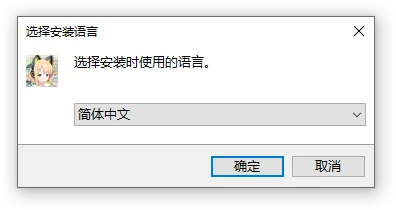
- Run the installer and select English, Simplified Chinese, or Japanese. This choice affects only the installer; choose the launcher language during setup.
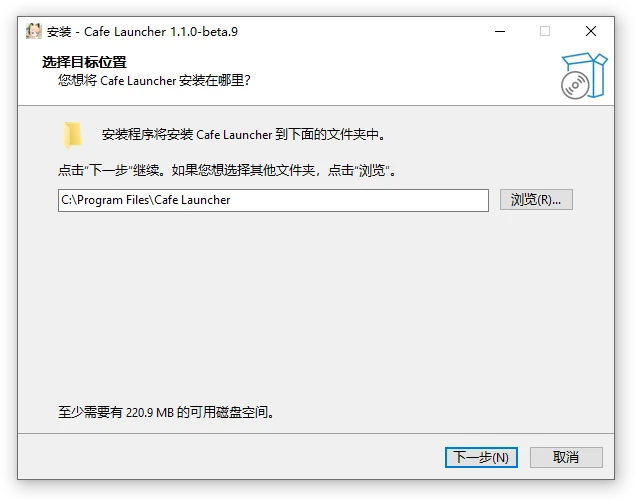
- Accept the administrator prompt and check the destination, normally
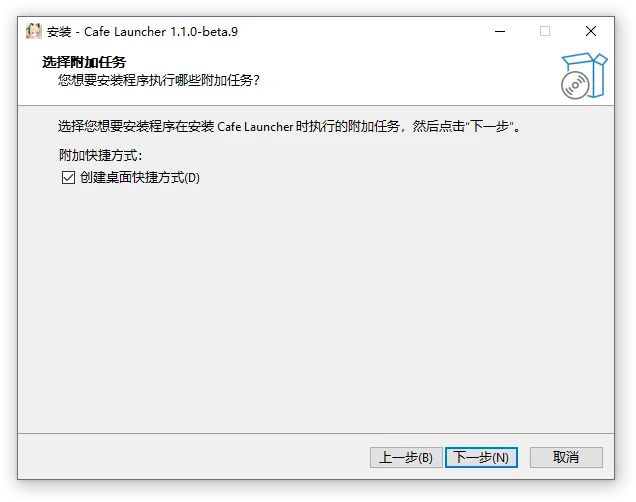
C:\Program Files\Cafe Launcher. - Optionally create a desktop shortcut, finish, and run Cafe Launcher.
Installation, upgrades, and uninstallation apply to all users and require administrator permission. Installing over an existing version preserves separate user data and game files.
Installer screenshots (Chinese)
Windows portable build
Extract the whole ZIP, then run Cafe.Launcher.exe. Do not run it from an archive preview. Keep all accompanying dependencies and the video runtime.
The portable build has no standard uninstall entry. Settings and logs still use the system user data directory. Verified in-app updates work for both portable and installed builds; for manual replacement, exit first and replace the complete application directory.
Windows security warnings: SmartScreen and Smart App Control
Cafe Launcher's Windows packages are currently not Authenticode-signed. Microsoft Defender SmartScreen may show "Windows protected your PC" or an unknown publisher, and Smart App Control on Windows 11 may block the installer or Cafe.Launcher.exe outright. These prompts are based on signing and reputation; they do not mean malware was detected.
- Download only from the Releases page linked here, and check the filename and version. If needed, verify the download against the same release's
SHA256SUMS. - If SmartScreen offers More info, expand it and choose Run anyway. Do this only after you have confirmed the source and checksum.
- For the portable ZIP, open its Properties before extracting and select Unblock; otherwise extracted files may keep the internet-origin mark and prompt individually.
- Smart App Control usually offers no Run anyway. Turning it off reduces protection against unsigned and untrusted programs, and turning it back on normally requires resetting or reinstalling Windows. Whether to disable it to use this app is your decision and risk.
- Enterprise, school, or security-software policies may prohibit unsigned programs entirely; the steps above cannot bypass those environments.
WARNING
The maintainers do not recommend disabling SmartScreen, Smart App Control, or antivirus protection globally just to use this app. Bypassing system prompts or downloading from third-party mirrors significantly increases risk; you are responsible for any system damage, data loss, or account issues. If the signing policy changes, the release notes are authoritative.
macOS
Extract osx-arm64.zip and move Cafe Launcher.app to Applications; this build requires Apple Silicon. You can also download cafe-launcher.rb from the same release and run brew install --cask ./cafe-launcher.rb with Homebrew installed; the cask installs its mpv dependency. The ZIP already includes the video runtime.
It can install, update, and repair game files; launching the Windows game is currently unavailable.
Linux
| Package | Installation or launch |
|---|---|
| DEB / RPM | Use the corresponding distribution package manager; it installs the libmpv dependency automatically |
| Arch package | sudo pacman -U ./Cafe.Launcher_v<version>_linux-x64.pkg.tar.zst with the actual filename |
| AppImage | Grant executable permission, then run |
| tar.gz | Extract and run Cafe.Launcher |
System packages provide the cafe-launcher command. The bundled portable Linux player requires glibc 2.35 and a libstdc++ providing GLIBCXX_3.4.29; on older systems it can fall back to a compatible system libmpv, or otherwise to the static background. If no window appears, launch from a terminal and install the missing graphics, font, or other system libraries reported there.
Packages do not install Wine, UMU, or Proton. Prepare a compatibility runtime before launching the game. Linux packages and AppImage start by suggesting YostarGames/BlueArchive_JP under your home directory for game files.
4. Complete first-time setup
The first-run wizard has seven steps, in order:
| Step | What to confirm |
|---|---|
| Welcome | Review the global options that follow |
| Language | Launcher interface language |
| User agreement and privacy policy | Scroll to the end and accept; setup cannot continue without consent |
| Game installation path | Choose a base directory or existing installation and check the final YostarGames/BlueArchive_JP path |
| Download source | Official supplies original JP resources; Cafe supplies resources from the BlueArchive.Cafe Chinese localization team |
| Proxy | Automatic system proxy, direct connection, or system proxy |
| Confirm your settings | Review and finish, or return to edit an earlier step |
Theme and motion are not part of this wizard; adjust them later under Settings → Appearance. Chinese system languages default to Cafe; other languages default to Official. Stable builds default to the stable update channel, and prerelease builds to beta.
After accepting the agreement, you can choose Skip Setup or press Esc; the launcher asks for confirmation before applying defaults. Settings can be changed later.
5. Detect or install the game
For existing files, select the BlueArchive_JP directory in the wizard's game installation path step, or use Select Game Directory later. The launcher reads manifest.json and game-launcher-config.json and detects valid installations without downloading the whole game again. Incomplete files are filled in against the selected manifest.
For a new installation, select Install Game and wait for download and verification. Pause and resume are available during transfer.
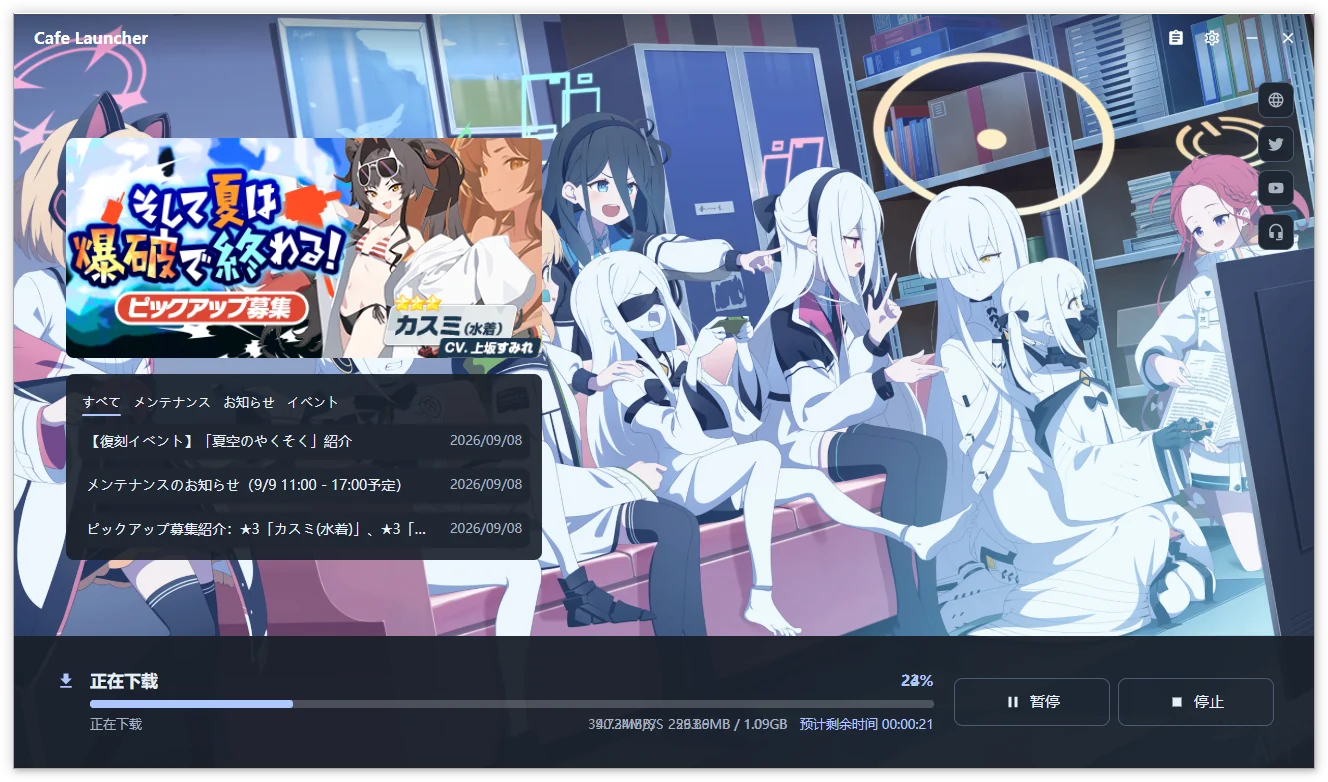
Screenshots show the Chinese interface and may be from an earlier version. Continue with Game operations or the Settings reference.